Campaigns
Sending rules that protect your number
A customer who gets too many offers blocks or reports your number, and quality drops for everyone. Gosendly's sending rules apply to campaigns and marketing flows, are switched on by default and are enforced by Gosendly automatically.
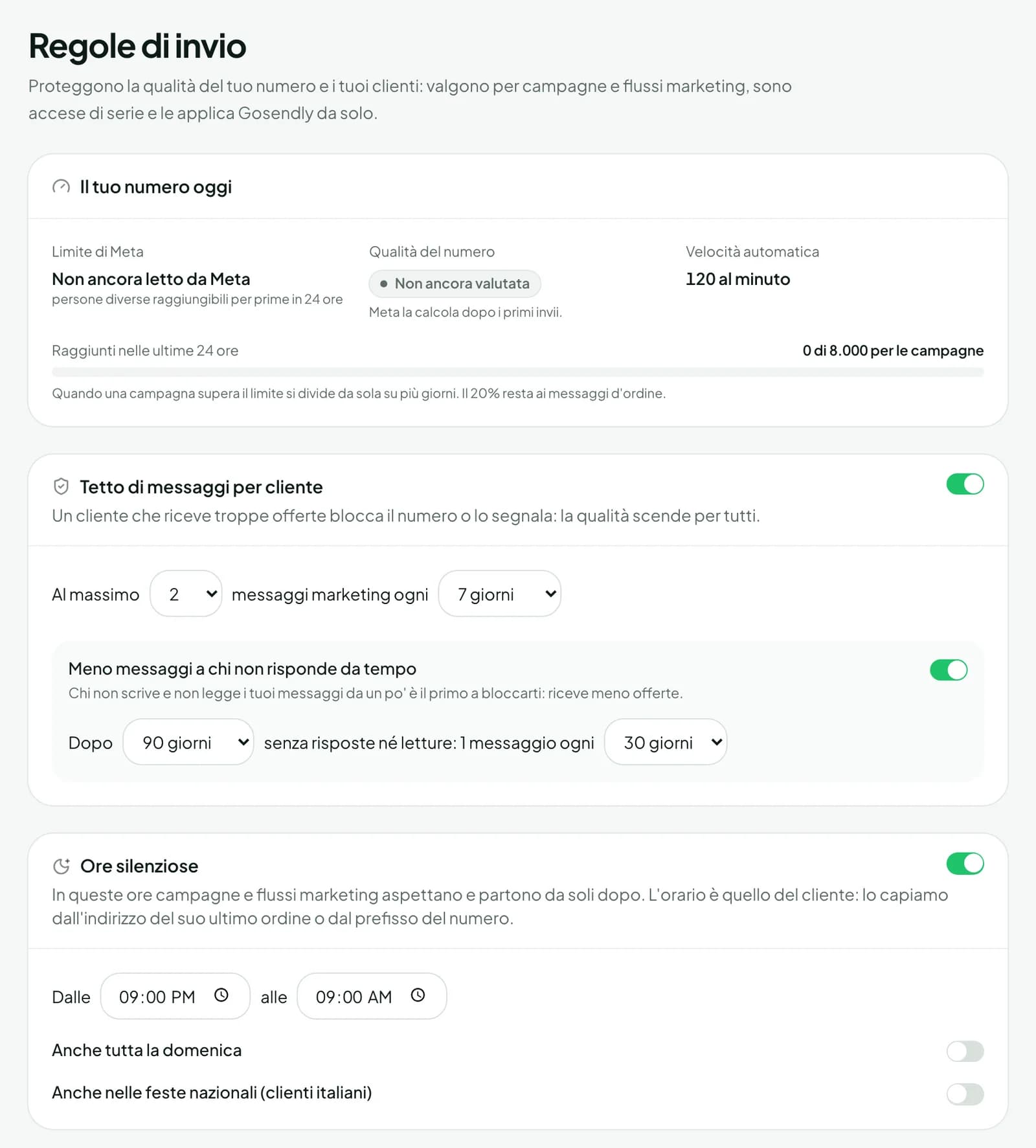
What you get
- Already cautious without changing anything: at most 2 promotions in 7 days per customer.
- No promotions at night: from 9 p.m. to 9 a.m. in the customer's time zone.
- A new number starts slow and ramps up on its own, below Meta's limit.
- If quality drops during a send, the campaign stops and alerts you.
How it works
- 1
Open the rules
In Settings › Sending rules you'll find, at the top, Meta's messaging limit, your number's quality rating and how many people you've reached in the last 24 hours.
- 2
Change them only if needed
Cap, quiet hours, gradual ramp-up and template checks are already on with cautious values. The owner or an admin can change them.
- 3
Let Gosendly handle it
The rules apply automatically to all campaigns and to marketing messages in flows: people who can't receive a message right now wait, and people who can't receive it at all are skipped, with the reason.
How many messages, and when
The message cap limits promotions per customer: 2 in 7 days by default. Customers who haven't written or read anything in 90 days get even fewer, 1 every 30 days, because they're the first to block.
Quiet hours hold campaigns and marketing flows from 9 p.m. to 9 a.m., and messages go out automatically afterwards. The time is the customer's: Gosendly works it out from the address on their last order or from their phone number's country code. You can also add all of Sunday and national holidays for Italian customers.
Meta's limits, respected automatically
Meta limits how many different people a business can contact in 24 hours outside an open chat: you start at 250, move up to 2,000 with business verification or a good sending history, then automatically to 10,000, 100,000 and unlimited. The limit applies to the store's entire Meta business portfolio.
With gradual ramp-up, a new number writes to 250 people in the first days, then doubles every day up to the limit. Automatic speed keeps campaigns below the limit, and a share, 20% by default, is reserved for order messages: a large campaign doesn't hold up order confirmations and shipping updates.
Number quality and paused templates
Meta measures quality from customer reactions over the last 7 days: blocks, reports, muted or archived chats. Gosendly checks your number every 30 minutes; with automatic pause on, if quality drops during a send the campaign stops and alerts you.
If a template drops to low quality, Meta pauses it for 3 hours the first time and 6 hours the second; the third time it disables it. A campaign stopped because of a paused template resumes on its own when Meta reactivates it, only for the people still waiting. The guide on number quality and blocks explains what to do if this happens.
Message checks before you launch
Before every campaign Gosendly also checks the text. A promotion inside a utility template blocks the send by default, because Meta prohibits it and may change the category or restrict the account. A marketing template with no way to unsubscribe shows a warning, or blocks the send if you choose: people who can say stop with one tap don't report you. Opt-in remains the first rule.
Frequently asked questions
Do the rules also apply to order confirmations?
No. The cap and quiet hours apply to promotions: campaigns and marketing messages in flows. Confirmations, shipping updates and chat replies go out when needed, to anyone who isn't blocked.
Can I send an important promotion even to people who have already hit the cap?
Yes, in the campaign audience you can choose “Also send to people who have already received many messages”. Use it only for important announcements: the cap is there to protect your number's quality.
How do I raise Meta's limit?
The first step up, from 250 to 2,000 people a day, comes with business verification in Meta Business or by sending good-quality messages to 2,000 different people within 30 days. After that the limit rises on its own if you use at least half of your limit and quality stays good.
Do sending rules cost extra?
No, they're in every plan. They matter most when you send promotions: campaigns and marketing templates are in the paid plans.
Keep reading
- FeaturesWhatsApp campaignsSales, a new collection, the last pieces before Christmas: with Gosendly's WhatsApp campaigns you send one message to many customers at once. Before…Read
- FeaturesOpt-in and automatic unsubscribeOn WhatsApp, promotions can only be sent to people who have agreed to them, and anyone who no longer wants them must be able to opt out right away…Read
- GuidesWhatsApp messaging limits and how to increase themWhatsApp messaging limits decide how many people you can message first in a day. Here you'll find how they've worked since 2025, the tiers, how to…Read
- GuidesWhatsApp quality rating: how to avoid blocksYour WhatsApp quality rating is the score Meta gives your messages based on how customers react to them. If it drops, your templates stop and your…Read
More features: Campaigns
Promotions and launches with Meta-approved templates.
- WhatsApp campaignsSales, a new collection, the last pieces before Christmas: with Gosendly's WhatsApp campaigns you send one message to many customers at once. Before sending you see who will actually get…Included in all paid plans
- Tracked links and clicksYou sent the link to your new collection: who opened it? With Gosendly's tracked links every link becomes a personal short link, and clicks are counted per customer, per campaign and per…Also included in the Free plan
Sources
- Meta: messaging limits(opens in a new tab)Read on October 28, 2026
- Meta: upcoming messaging limits changes(opens in a new tab)Read on October 28, 2026
- Meta: sending messages and quality(opens in a new tab)Read on October 28, 2026
- Meta: template pausing(opens in a new tab)Read on October 28, 2026
Sign-ups open soon
Leave your email and we'll tell you when we launch: then you create your account and find a sample store full of data to try right away.
- We'll write to you once
- Every feature when we open
- Sample store already full of data