Guide
WhatsApp messaging limits and how to increase them
WhatsApp messaging limits decide how many people you can message first in a day. Here you'll find how they've worked since 2025, the tiers, how to move up and how to plan a Black Friday when your limit is still low.
At a glance
- The limit counts the unique people you message first, outside the 24-hour window, in the last 24 hours. Replies to people who write to you don't count.
- Since October 7, 2025, the limit belongs to the business portfolio and is shared by all of its phone numbers.
- The tiers are 250, 2,000, 10,000, 100,000 and unlimited; you reach 2,000 through business verification or one of Meta's other paths.
- From 2,000 up, you move up automatically: high-quality messages and more than half of your limit used in the last 7 days, then Meta raises your tier within 6 hours.
- Quality no longer lowers your limit, but if it drops it blocks your growth and pauses your templates.
What the limit counts
The messaging limit is the maximum number of unique people your business portfolio can send messages to outside the 24-hour window, in a rolling 24-hour period. In practice it counts the customers you message first with a template: order confirmations, shipping updates, carts, promotions.
Replies to customers who wrote to you don't count, because they fall inside the 24-hour window. And it counts people, not messages: if you send Marco the order confirmation and then the shipping update on the same day, Marco counts as one.
What changed on October 7, 2025
Until 2025 each phone number had its own limit. Since October 7, 2025, the limit belongs to the business portfolio and is shared by all the numbers in it: a single number can even use all of it. Numbers registered later don't start from zero, they use the portfolio's limit.
Two other things changed as well. The threshold for automatic growth went from 1,000 to 2,000. And quality no longer lowers your limit: the "Flagged" status, which marked a number at risk, no longer exists. But don't read this as a free pass: with low quality you don't move up a tier, your templates get paused and, in serious cases, Meta restricts the account.
The tiers
There are five tiers. The first applies to new portfolios, the second is reached through a specific path, and the others come automatically if you meet the conditions.
- 250 people in 24 hours: the starting point for a new portfolio.
- 2,000: after one of the growth paths described below.
- 10,000: automatic growth.
- 100,000: automatic growth.
- Unlimited: automatic growth.
From 250 to 2,000: the three paths
To leave the first tier, Meta offers three paths, listed below: one is enough. After that, Meta checks the quality of your messages and approves or denies the upgrade: if it approves, your limit goes up to 2,000 right away; if it denies, it stays the same and you get a notice with the alternatives.
- Business verification of your Meta portfolio.
- Verification done by the provider, if your number was connected by a partner that handles it.
- 2,000 messages delivered outside the window to unique people in 30 days, with high-quality templates.
Which path makes sense for a store
For a store, the cleanest path is business verification. It's not just about the limit: it raises the number of phone numbers you can register from 2 to 20, raises your template cap and lets you apply for the blue checkmark. The glossary entry on business verification explains what it is.
The third path is slower: at 250 people a day, reaching 2,000 delivered messages takes at least 8 days of full sending, all to people who expect your message. It's fine if verification is stuck on a missing document, not as a shortcut.
From 2,000 up: automatic growth
From 2,000 onward, Meta raises your limit by one tier when both conditions listed below are met. Once they are, the new limit arrives within 6 hours: you can check it in WhatsApp Manager, in the messaging limits section, or in the software you use.
- All your phone numbers and templates send high-quality messages.
- In the last 7 days you've used more than half of your current limit.
Other limits to know about
The messaging limit isn't the only rule. There are others, listed below, that matter when you send a lot of messages. None can be bypassed by sending faster: you respect them by planning.
- Per-user marketing limit: WhatsApp may deliver fewer promotions to people who get many from all businesses and rarely read them. The undelivered message comes back with error 131049: wait at least 24 hours before trying that person again. Marketing messages sent inside the 24-hour window don't count.
- People who stopped your offers: if a customer has stopped your marketing messages from their WhatsApp settings, Meta won't deliver them (error 131050).
- Marketing template pacing: Meta may hold back part of a new template's sends to measure reactions before delivering the rest; the stated goal is to deliver within an hour.
- Throughput: by default a phone number sends up to 80 messages per second, and no more than one message every 6 seconds to the same person.
- Phone numbers per portfolio: 2 at the start, up to 20 after verification or with the 2,000 limit.
Example: Black Friday with a 2,000 limit
A cosmetics store has 6,000 customers who gave consent and a limit of 2,000. It wants to announce its Black Friday discounts without stopping order confirmations and shipping updates, which count toward the same limit.
The simplest plan is to split it up: 1,600 people a day for four days, leaving 400 slots for order messages, starting with the most recent buyers. The more ambitious plan is to grow first: if in the preceding weeks the store consistently messages more than half of its limit with messages that get read and well received, Meta can raise it to 10,000, and at that point the announcement goes out in one day.
Either way, the advice is the same: don't send everyone the same offer. A segment of people who bought this year blocks less and reads more than a list of cold contacts, and that protects the quality you need to grow.
How Gosendly handles it
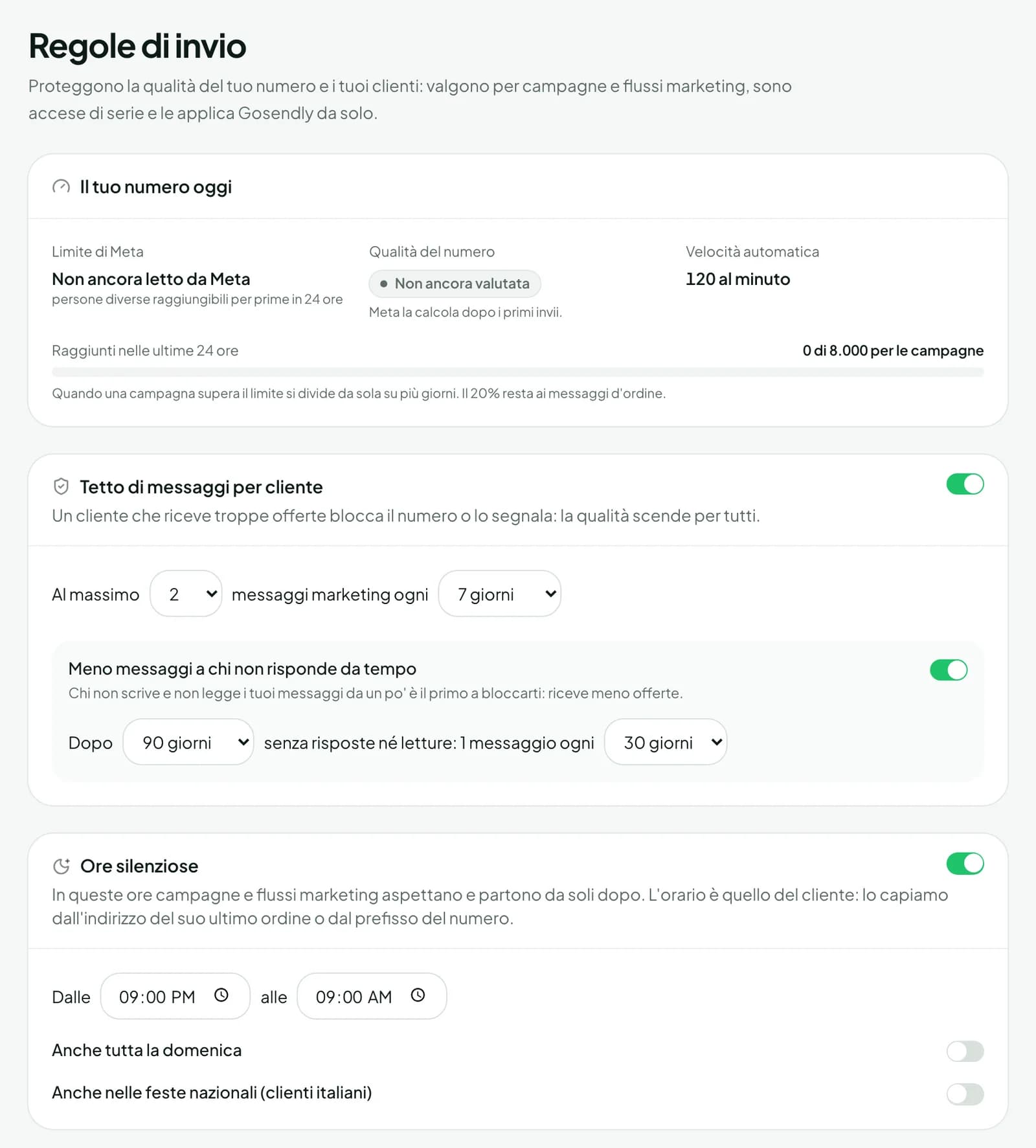
On your phone number's page you see your portfolio's limit (250, 2,000, 10,000, 100,000) and how many people you've already reached in the last 24 hours, with quality and limit checked every 30 minutes. Campaigns don't crash into the limit: they wait on their own and resume when there's room.
The sending rules are on by default and designed precisely to help you grow without risk:
- Gradual sending for new phone numbers: 250 people in the first days, then double each day up to Meta's limit.
- 20% of the limit is reserved for order messages, so a big campaign doesn't stop confirmations and shipping updates.
- Automatic campaign pause if Meta lowers the number's quality during sending.
- A cap of 2 marketing messages in 7 days per customer, and 1 in 30 days for those who haven't replied in 90.
Frequently asked questions
Do replies to customers count toward the messaging limit?
No. The limit only counts the people you message first, outside the 24-hour window. If a customer writes to you and you reply, that reply doesn't use up your limit.
Does the limit apply per phone number or per business?
Since October 7, 2025, it applies to the business portfolio and is shared by all the numbers in it.
How long does it take to go from 250 to 2,000?
With business verification, the upgrade comes when Meta approves it and checks the quality of your messages. With the path of 2,000 messages in 30 days, at 250 a day, you need at least 8 days of full sending.
If quality drops, does my limit go down?
Not anymore: since October 7, 2025, Meta doesn't lower the limit because of quality. But with low quality you don't move up a tier, your templates can get paused and, if the problems continue, Meta can restrict the account.
What does error 131049 mean?
That WhatsApp didn't deliver a marketing message because of the per-user limit: that customer already gets lots of promotions and rarely reads them. Wait at least 24 hours before trying them again.
Sources
- Meta for Developers: Messaging limits(opens in a new tab)Read on October 28, 2026
- Meta for Developers: Upcoming changes to messaging limits(opens in a new tab)Read on October 28, 2026
- Meta Business Help Center: About your WhatsApp Business phone number's quality rating(opens in a new tab)Read on October 28, 2026
- Meta for Developers: Per-user marketing template message limits(opens in a new tab)Read on October 28, 2026
- Meta for Developers: Marketing templates(opens in a new tab)Read on October 28, 2026
- Meta for Developers: Template pacing(opens in a new tab)Read on October 28, 2026
- Meta for Developers: About the WhatsApp Business Platform(opens in a new tab)Read on October 28, 2026
Keep reading
- FeaturesSending rules that protect your numberA customer who gets too many offers blocks or reports your number, and quality drops for everyone. Gosendly's sending rules apply to campaigns and…Read
- GuidesWhatsApp quality rating: how to avoid blocksYour WhatsApp quality rating is the score Meta gives your messages based on how customers react to them. If it drops, your templates stop and your…Read
- GuidesHow much WhatsApp Business costs: Meta's pricesThe WhatsApp Business app is free; the platform for stores is paid per delivered message. Here you'll find WhatsApp Business pricing for Italy as…Read
- FeaturesWhatsApp campaignsSales, a new collection, the last pieces before Christmas: with Gosendly's WhatsApp campaigns you send one message to many customers at once. Before…Read
- GuidesWhatsApp blue checkmark: how to get itThe blue checkmark on WhatsApp tells customers they really are messaging your store. Today there are two different ways to get it, one for the API…Read
More guides
- GuideHow much WhatsApp Business costs: Meta's pricesThe WhatsApp Business app is free; the platform for stores is paid per delivered message. Here you'll find WhatsApp Business pricing for Italy as Meta publishes it, with sample…
- GuideWhatsApp Business API: the guide for storesThe WhatsApp Business API is how a store connects WhatsApp to its tools: orders, carts, a shared inbox, automations. This guide explains what you really need to activate it, without…
- GuideWhatsApp Business app vs API: the differencesWhatsApp Business app or API: the choice depends on how many chats you have, who replies and what you want to automate. Here you'll find the differences laid out side by side and the signs…
- GuideWhatsApp blue checkmark: how to get itThe blue checkmark on WhatsApp tells customers they really are messaging your store. Today there are two different ways to get it, one for the API platform and one for the app: here you'll…
- GuideConsent and GDPR for WhatsApp messagesTo message customers on WhatsApp you need two permissions that go together: the one Meta requires and the one privacy law requires. This guide explains consent and GDPR for WhatsApp…
- GuideWhatsApp for Shopify: the complete guideWhatsApp for Shopify means updating customers on their orders, recovering carts and answering in chat without leaving your store's workflow. This guide starts from what Shopify already…
Sign-ups open soon
Leave your email and we'll tell you when we launch: then you create your account and find a sample store full of data to try right away.
- We'll write to you once
- Every feature when we open
- Sample store already full of data