Guide
WhatsApp quality rating: how to avoid blocks
Your WhatsApp quality rating is the score Meta gives your messages based on how customers react to them. If it drops, your templates stop and your account risks restrictions. Here's how it works today and how to protect it before every send.
At a glance
- The quality rating looks at the messages your customers received over the last 7 days, especially blocks and reports, and is green, yellow or red.
- Since October 7, 2025, quality no longer lowers your messaging limit, and the “Flagged” and “Restricted” statuses no longer exist.
- With low quality, though, you can't move up a tier, templates get paused, and repeated violations lead to restrictions from 1 to 30 days.
- You protect it before you send: clear consent, a few useful messages, the right timing, easy unsubscribe.
What the quality rating is
According to Meta's Help Center, the quality rating is a score based on the messages your customers received over the last 7 days. It's driven by their reactions: who blocks you, the reason they pick when they do, and reports.
You'll find it in WhatsApp Manager, on the phone numbers tab, in three colors: green (high quality), yellow (medium), red (low). If it's yellow or red, hovering over the rating shows the block reasons, when available, and you can open the trend for the last 30 days to see which day went wrong.
What changed on October 7, 2025
Until 2025, a number with low quality could be marked “Flagged” and have its messaging limit lowered. Since October 7, 2025, the “Flagged” and “Restricted” statuses no longer exist and your messaging limit doesn't drop because of quality.
That doesn't mean quality no longer matters. To move up from one tier of messaging limits to the next, you need high-quality messages across all your numbers and templates. Low-quality templates get paused. And strong, sustained negative feedback remains one of the reasons Meta restricts or shuts down an account.
Template quality
Beyond the number, Meta rates every template based on negative feedback, read rates and customer engagement. There are four ratings: high, medium, low and “pending” for new templates or those with little data.
When a template hits the lowest quality, it gets paused: 3 hours the first time, 6 hours the second, then it's disabled. For marketing templates, Meta also uses pacing: it may deliver part of the messages, hold back the rest to measure reactions, and then drop them if the reactions are negative. Meta notes that the number isn't penalized right away, but that low-quality templates used over and over can hurt it. How to avoid weak templates is covered in the guide to template approval.
When Meta restricts the account
Restrictions come from repeated policy violations: spam, templates in the wrong category, prohibited products, too many reports. It usually starts with a warning; in serious cases the account can be shut down immediately. These are the steps Meta describes:
- 1 or 3 days: no marketing, utility or authentication templates, and no new numbers.
- 5, 7 or 30 days: no outgoing messages and no new numbers.
- Account lock: indefinite, lifted only through an appeal.
- Disabling: permanent, if the behavior doesn't change after warnings and restrictions.
Warnings and appeals
Violations arrive as a notification in your business portfolio, with a banner in WhatsApp Manager and an email to admins: keep their addresses up to date, because that's where you find out what happened and for how long.
If you think it's a mistake, you can request a review from Business Support Home: choose the account, the violation and “Request Review”, then add the details. The answer usually comes within 24-48 hours and can confirm or reverse the decision. Not every spam violation can be appealed, and sometimes you have to wait for the restriction to end before messaging again.
Why customers block you
When a customer blocks a business, WhatsApp asks them for a reason. Meta lists the possible ones, and each tells you something about what to fix:
- No longer needed: the right messages sent to the wrong person or too late. Review your segments.
- Didn't sign up: consent is missing, or the customer doesn't remember giving it. Review how you collect it and always introduce yourself.
- Spam: too many messages or the same offer over and over. Lower the frequency.
- Offensive messages: inappropriate tone or content. Reread your copy.
- No reason: look at the other signals, starting with read rates.
The rules that protect your number
Quality is decided before you hit “send”. These habits are worth more than any trick:
- Only message people who gave you consent, with your store name clearly shown: the rules are in the consent and GDPR guide.
- Tell customers what they'll receive and how often, and keep that promise.
- Few, targeted promotions: people who bought or replied recently read more and block less.
- No messages at night or early on Sunday morning.
- Every marketing message has a simple way out, like an “Unsubscribe” button.
- Use the right category: promotions disguised as utility messages lead to restrictions.
- With a new number, ramp up gradually instead of messaging your whole contact list right away.
- Keep your business profile complete with at least one support contact (email, website or phone): WhatsApp's policy requires it.
The per-user limit on marketing messages
Even with perfect quality, some marketing messages may not be delivered. WhatsApp limits the promotions a person receives from all businesses when they rarely read them; the message comes back with error 131049. Don't retry right away: Meta asks you to wait at least 24 hours, because repeated attempts can block other sends to that person.
If instead the customer has stopped your offers from their WhatsApp settings, Meta no longer delivers your marketing messages to them (error 131050). Treat that customer as unsubscribed.
If quality drops: what to do right away
A yellow rating is a warning, not a sentence. Work through it in order:
- Stop campaigns in progress and those scheduled for the next few days.
- Find the template or send that pulled the rating down: look at the worst day in the last 30 days and the block reasons.
- Check who you sent it to: were there contacts without consent, or who haven't bought in years?
- Fix the copy, frequency or segment before starting again, and restart small, with your most active customers.
- If a restriction arrives, read the notification and request a review only if you really think it's a mistake.
How Gosendly helps
Gosendly checks your number's quality and messaging limit, plus the quality of every template, every 30 minutes and alerts you when they change. If Meta lowers the quality during a send, the campaign stops on its own; with low quality, marketing campaigns don't start.
The sending rules are on by default: at most 2 marketing messages in 7 days per customer, 1 in 30 days to anyone who hasn't replied or read in 90, no promotions from 9 p.m. to 9 a.m. in the customer's time zone, and gradual sending for new numbers. Before every campaign, Gosendly blocks promotions sent as service messages and flags those without an unsubscribe option; anyone who writes STOP or taps “Unsubscribe” is removed right away from marketing campaigns and flows, as explained in the consent and unsubscribe feature.
Frequently asked questions
Where can I see my number's quality rating?
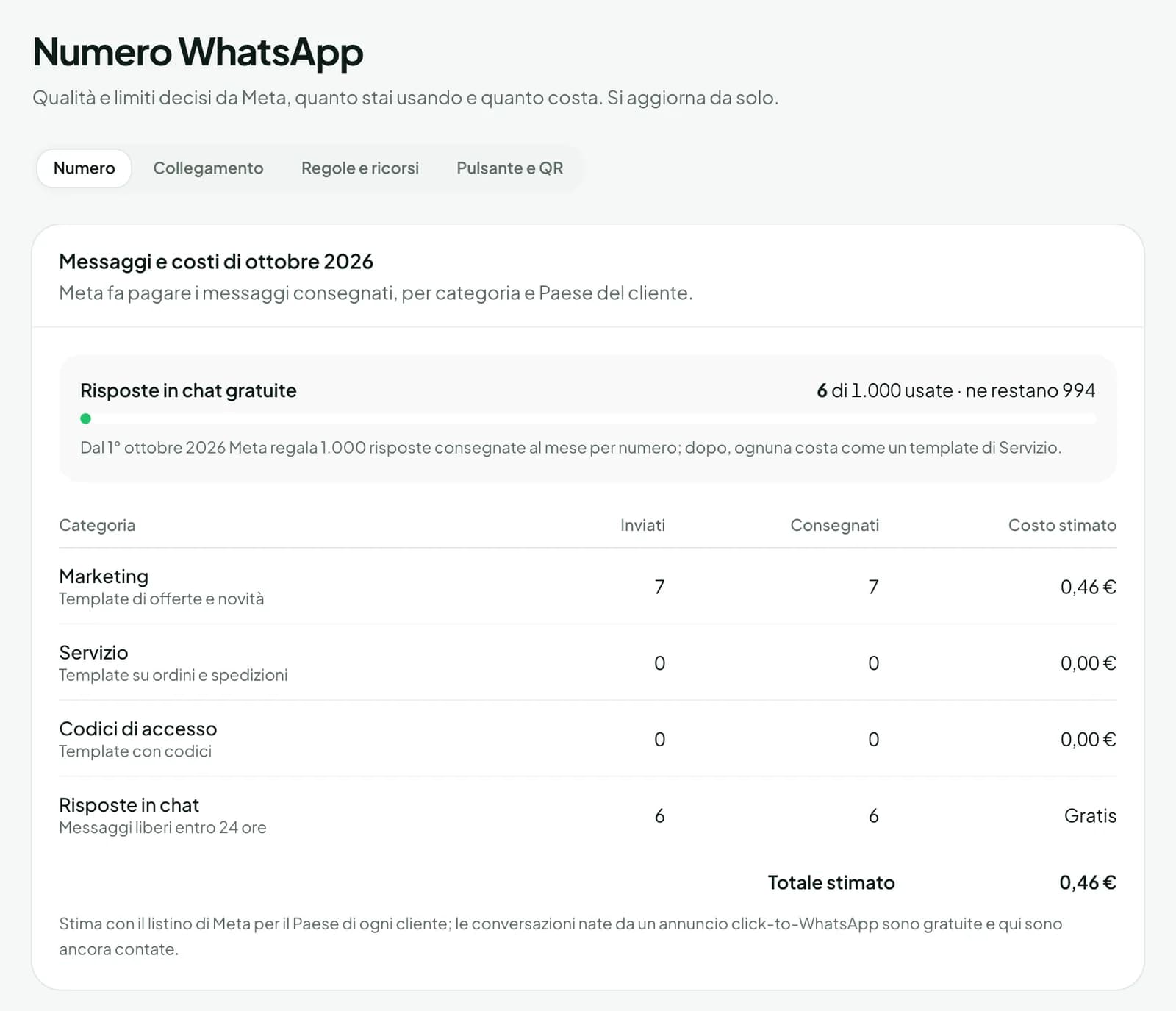
In Meta's WhatsApp Manager, on the phone numbers tab, in the quality column. If you use Gosendly, you'll also find it on the number's page, together with the messaging limit.
Can I still send messages with a red rating?
Yes: since October 7, 2025, quality no longer lowers your limit. But low-quality templates get paused, you can't move up a tier and, if negative feedback continues, Meta can restrict the account. Better to stop and fix things.
How long does a Meta restriction last?
It depends on the violation: 1 or 3 days without templates, or 5, 7 or 30 days without outgoing messages. An account lock stays in place until an appeal is accepted.
How do I appeal a restriction?
From Meta's Business Support Home: choose the account, the violation and “Request Review”, then add the details. The answer usually comes within 24-48 hours.
Does a single customer blocking me lower my quality?
The quality rating looks at all your messages over the last 7 days, not at a single customer. The trend is what counts: if blocks rise after a send, that's the send to review.
Sources
- Meta Business Help Center: About your WhatsApp Business phone number's quality rating(opens in a new tab)Read on October 28, 2026
- Meta for Developers: Upcoming changes to messaging limits(opens in a new tab)Read on October 28, 2026
- Meta for Developers: Template quality(opens in a new tab)Read on October 28, 2026
- Meta for Developers: Template pausing(opens in a new tab)Read on October 28, 2026
- Meta for Developers: Template pacing(opens in a new tab)Read on October 28, 2026
- Meta for Developers: Policy enforcement(opens in a new tab)Read on October 28, 2026
- Meta for Developers: Per-user marketing template message limits(opens in a new tab)Read on October 28, 2026
- WhatsApp Business Messaging Policy (updated September 23, 2026)(opens in a new tab)Read on October 28, 2026
Keep reading
- FeaturesSending rules that protect your numberA customer who gets too many offers blocks or reports your number, and quality drops for everyone. Gosendly's sending rules apply to campaigns and…Read
- GuidesWhatsApp messaging limits and how to increase themWhatsApp messaging limits decide how many people you can message first in a day. Here you'll find how they've worked since 2025, the tiers, how to…Read
- GuidesConsent and GDPR for WhatsApp messagesTo message customers on WhatsApp you need two permissions that go together: the one Meta requires and the one privacy law requires. This guide…Read
- GuidesHow to get WhatsApp templates approvedEvery message you send first on WhatsApp starts from a template that Meta has to approve. Here you'll find how WhatsApp template approval works, how…Read
- FeaturesOpt-in and automatic unsubscribeOn WhatsApp, promotions can only be sent to people who have agreed to them, and anyone who no longer wants them must be able to opt out right away…Read
More guides
- GuideHow much WhatsApp Business costs: Meta's pricesThe WhatsApp Business app is free; the platform for stores is paid per delivered message. Here you'll find WhatsApp Business pricing for Italy as Meta publishes it, with sample…
- GuideWhatsApp Business API: the guide for storesThe WhatsApp Business API is how a store connects WhatsApp to its tools: orders, carts, a shared inbox, automations. This guide explains what you really need to activate it, without…
- GuideWhatsApp Business app vs API: the differencesWhatsApp Business app or API: the choice depends on how many chats you have, who replies and what you want to automate. Here you'll find the differences laid out side by side and the signs…
- GuideWhatsApp blue checkmark: how to get itThe blue checkmark on WhatsApp tells customers they really are messaging your store. Today there are two different ways to get it, one for the API platform and one for the app: here you'll…
- GuideWhatsApp messaging limits and how to increase themWhatsApp messaging limits decide how many people you can message first in a day. Here you'll find how they've worked since 2025, the tiers, how to move up and how to plan a Black Friday…
- GuideConsent and GDPR for WhatsApp messagesTo message customers on WhatsApp you need two permissions that go together: the one Meta requires and the one privacy law requires. This guide explains consent and GDPR for WhatsApp…
Sign-ups open soon
Leave your email and we'll tell you when we launch: then you create your account and find a sample store full of data to try right away.
- We'll write to you once
- Every feature when we open
- Sample store already full of data