Guide
How to get WhatsApp templates approved
Every message you send first on WhatsApp starts from a template that Meta has to approve. Here you'll find how WhatsApp template approval works, how to pick the right category and the mistakes that get a text rejected.
At a glance
- Meta reviews every template with automated systems and people, and decides within 24 hours.
- The category matters as much as the text: a utility template must have no promotions and be tied to a customer action; if there's an offer, it's marketing.
- Variables must be in order ({{1}}, {{2}}…), can't start or end the text and need a realistic sample.
- If the template is rejected you can fix it or appeal; if it's approved but customers don't like it, Meta can pause it for 3 or 6 hours and then disable it.
What a template is and when you need one
A template is a message format that Meta approves before you can use it. You need one whenever you write first, that is, outside the 24-hour window: order confirmations, shipping updates, cart reminders, promotions. Inside the window, when the customer has written to you, you reply with free-form messages.
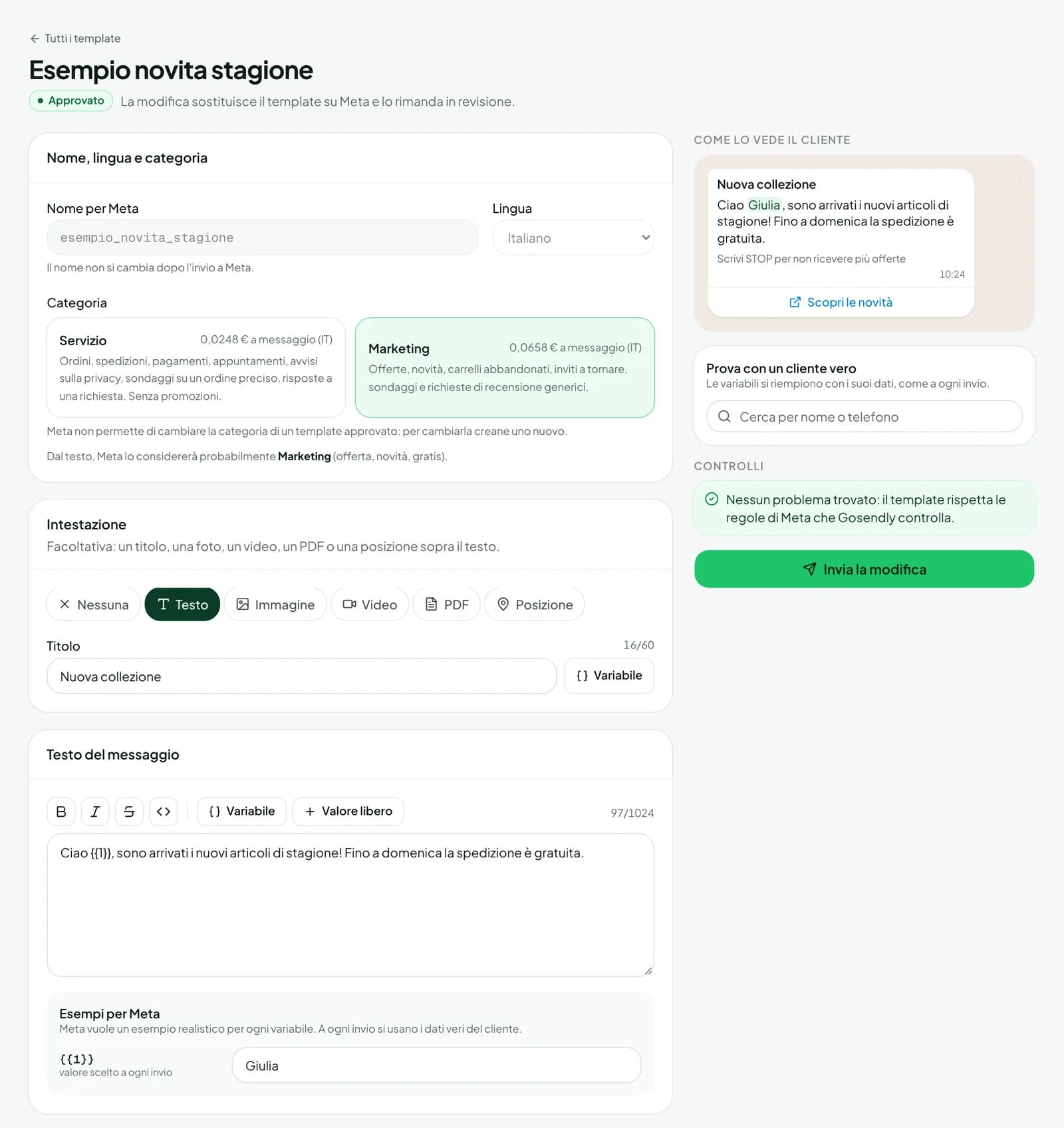
A template has a name, a language, a category and components: an optional header (text, image, video or document), the body, an optional footer and buttons. The parts that change from one customer to another, like the name or the order number, are variables. Only a template with approved status can be sent.
How the review works
When you create or edit a template, Meta reviews it with a combination of automated systems and manual reviews and decides within 24 hours. The result shows up in WhatsApp Manager, by email to admins and in the software you use.
There are three statuses you'll see most often. Active (at first with "quality pending"): it can be sent. Rejected: it needs to be fixed and resubmitted, or appealed. Paused or disabled: it was approved, but customers didn't like it much; more on this below. Be careful with edits: if you change an approved template it goes back into review and can't be sent until Meta approves it again.
The right category
Meta splits templates into three categories, with different prices, and choosing the right one is the first step toward approval. When in doubt, Meta picks marketing: that includes texts with mixed content, like an order update with a promotion, and texts that are too vague, like a message made of just a variable or a "Congratulations!".
The three categories, in short:
- Utility: must have no promotional or persuasive intent and be tied to a customer request or action (order confirmation, shipping, delayed order, refund, payment reminder), or be essential to them. See utility category.
- Marketing: everything else, from offers to product recommendations, from cart reminders to generic surveys. See marketing category.
- Authentication: verification codes (OTP) only, using a template from Meta's library and a button to copy the code. See authentication category.
If Meta changes the category
If you submit as utility a text that Meta considers marketing, since April 9, 2025 the template is approved directly as marketing. Meta also checks templates that are already approved: when it moves a utility template to marketing, it gives one day's notice and the template stays active, but it costs as much as a marketing one. You have 60 days to request a review from Meta support.
Trying to game the system doesn't pay. Businesses that systematically submit promotions as utility first get a warning, then a cap on utility messages for at least 7 days, then all their utility templates automatically moved to marketing for 7 days (30 if it happens again) and, in the worst cases, a 30-day restriction on the whole portfolio.
Formatting rules
Many rejections aren't about the content but about the format. These are the rules Meta sets for variables and components:
- Variables numbered in order, with no gaps: {{1}}, {{2}}, {{3}}. A text with {{1}}, {{2}}, {{5}}, {{4}} gets rejected.
- The body can't start or end with a variable.
- Every variable has a realistic sample, submitted together with the template.
- No special characters like #, $ or % inside variables, and not too many variables for a short text.
- Text header: up to 60 characters and a single variable. Body: up to 1,024 characters. Footer: up to 60 characters, no variables.
- Buttons: up to 10 in total; quick replies with text up to 25 characters; up to 2 link buttons (variable only at the end of the URL), 1 to call and 1 to copy a code.
Content that gets rejected
Beyond format, Meta rejects texts that break its commerce and conduct rules. Three common cases for a store:
The first is asking for full sensitive data, like the complete card, account or ID document number: if you need information like that, send the customer to a secure page on your site. The second is a threatening or aggressive tone, for example in payment reminders. The third is duplicates: a template with the same body and footer as one you already have gets rejected. Finally, the WhatsApp Business Messaging Policy rules on restricted products apply, such as weapons, alcohol, tobacco and drugs. Some can only be promoted on the platform and only in the countries Meta lists: for alcohol, as of October 28, 2026, Italy isn't on the list. If you sell wine or spirits, check the policy before preparing promotions.
Three practical examples
Passes as utility. "Hi {{1}}, thanks for your order {{2}}! We're getting it ready and we'll message you here when it ships." It's tied to a purchase, promotes nothing, starts and ends with text, and has two samples: "Giulia" and "#1043".
Becomes marketing. "Hi {{1}}, your order {{2}} has shipped! Use code THANKS10 for 10% off your next purchase." The shipping update is utility, but the discount turns it into marketing. Better to send two messages: the update right away, the offer later, only to those who gave consent. A clean format is the order shipped template.
Gets rejected. "{{1}}, here's your code: {{2}}" starts and ends with a variable, and a login code must only be sent with an authentication template. If you need one, start from the verification code template.
If your template is rejected
You have two options. The fastest is usually to fix and resubmit: read the reason, adjust the text and send it again. If instead you think Meta got it wrong, you can appeal, attaching an example of how you'll use the template: the decision comes within 24 hours.
Before resubmitting, reread the text the way the customer would: is it clear why you're writing to them? Are the variable samples realistic, a real name and a plausible order number, not "xxx"? Is the category you chose the right one?
After approval: quality and pauses
Approval isn't forever. Meta measures how customers react to each template, through reports, blocks and reads, and gives it a quality rating: high, medium, low, or pending if there isn't enough data.
Marketing templates also have pacing: Meta may deliver part of a send, hold back the rest to measure reactions and then deliver it, or drop it if reactions are negative. A template that reaches the lowest quality gets paused: 3 hours the first time, 6 hours the second, then it's disabled. A disabled template can be fixed and resubmitted. Your number isn't penalized right away, but low-quality templates used over and over can hurt it: the guide on number quality explains how to avoid that.
How many templates you can have
Each account can have up to 250 templates if the business portfolio isn't verified, and up to 6,000 if it's verified and the display name is approved. You can create at most 100 per hour. The same template in two languages counts twice, and Meta doesn't translate anything: texts and samples must be written in the chosen language.
How Gosendly helps
In Gosendly's template editor, checks run as you type: variables in order, lengths, buttons, missing samples, content Meta rejects. Gosendly predicts the category before you submit and blocks promotions inside a service template, explaining why and suggesting marketing instead. It also flags things that often cause trouble, like shortened links or test texts.
After submitting, you see the status updated from Meta's notifications and, if a rejection comes in, the reason explained in Italian along with what to change. Authentication templates are created in WhatsApp Manager and come into Gosendly through syncing. For a quick check, with no account, there's the free template checker tool.
Frequently asked questions
How long does it take to get a template approved?
Meta says it decides within 24 hours. The result shows up in WhatsApp Manager, by email and in the software you use.
Can I put a discount code in the order confirmation?
You can, but the template becomes marketing: it costs more and you can only send it to people who gave marketing consent. Better to keep the confirmation clean and send the offer separately.
Why was my template approved as marketing when I chose utility?
Since April 9, 2025, Meta directly approves as marketing the templates that are marketing, even if you submitted them as utility. It happens when there's an offer, an invitation to buy or a text that's too vague.
What do I do if a template gets paused?
Stop the campaigns that use it and figure out why customers are reporting it or not reading it: wrong recipients, too many sends, unclear text. The pause ends on its own after 3 or 6 hours; the third time, the template is disabled and has to be fixed and resubmitted.
Can I edit a template that's already approved?
Yes, but it goes back into review and can't be sent until Meta approves it again. If active flows use it, it's better to create a new version and swap it in once it's approved.
Sources
- Meta for Developers: Template review(opens in a new tab)Read on October 28, 2026
- Meta for Developers: Template categorization(opens in a new tab)Read on October 28, 2026
- Meta for Developers: Template components(opens in a new tab)Read on October 28, 2026
- Meta for Developers: Templates overview(opens in a new tab)Read on October 28, 2026
- Meta for Developers: Template quality(opens in a new tab)Read on October 28, 2026
- Meta for Developers: Template pausing(opens in a new tab)Read on October 28, 2026
- Meta for Developers: Template pacing(opens in a new tab)Read on October 28, 2026
- WhatsApp Business Messaging Policy (updated September 23, 2026)(opens in a new tab)Read on October 28, 2026
Keep reading
- FeaturesWhatsApp templates: create them and get them approvedTo message a customer first, or more than 24 hours after their last message, WhatsApp requires a template approved by Meta. With the Gosendly…Read
- Free toolsCheck your template before Meta doesWrite or paste your template and instantly see the errors that get it rejected, the warnings, the category Meta will likely assign and how your…Read
- GuidesWhatsApp quality rating: how to avoid blocksYour WhatsApp quality rating is the score Meta gives your messages based on how customers react to them. If it drops, your templates stop and your…Read
- GuidesHow much WhatsApp Business costs: Meta's pricesThe WhatsApp Business app is free; the platform for stores is paid per delivered message. Here you'll find WhatsApp Business pricing for Italy as…Read
More guides
- GuideHow much WhatsApp Business costs: Meta's pricesThe WhatsApp Business app is free; the platform for stores is paid per delivered message. Here you'll find WhatsApp Business pricing for Italy as Meta publishes it, with sample…
- GuideWhatsApp Business API: the guide for storesThe WhatsApp Business API is how a store connects WhatsApp to its tools: orders, carts, a shared inbox, automations. This guide explains what you really need to activate it, without…
- GuideWhatsApp Business app vs API: the differencesWhatsApp Business app or API: the choice depends on how many chats you have, who replies and what you want to automate. Here you'll find the differences laid out side by side and the signs…
- GuideWhatsApp blue checkmark: how to get itThe blue checkmark on WhatsApp tells customers they really are messaging your store. Today there are two different ways to get it, one for the API platform and one for the app: here you'll…
- GuideWhatsApp messaging limits and how to increase themWhatsApp messaging limits decide how many people you can message first in a day. Here you'll find how they've worked since 2025, the tiers, how to move up and how to plan a Black Friday…
- GuideConsent and GDPR for WhatsApp messagesTo message customers on WhatsApp you need two permissions that go together: the one Meta requires and the one privacy law requires. This guide explains consent and GDPR for WhatsApp…
Sign-ups open soon
Leave your email and we'll tell you when we launch: then you create your account and find a sample store full of data to try right away.
- We'll write to you once
- Every feature when we open
- Sample store already full of data