WhatsApp button for your website and QR codes
A shopper looking at a product with a question about sizing shouldn't have to hunt for your number. With the Gosendly WhatsApp website button they tap, WhatsApp opens with the message already written, and you know which page they came from.
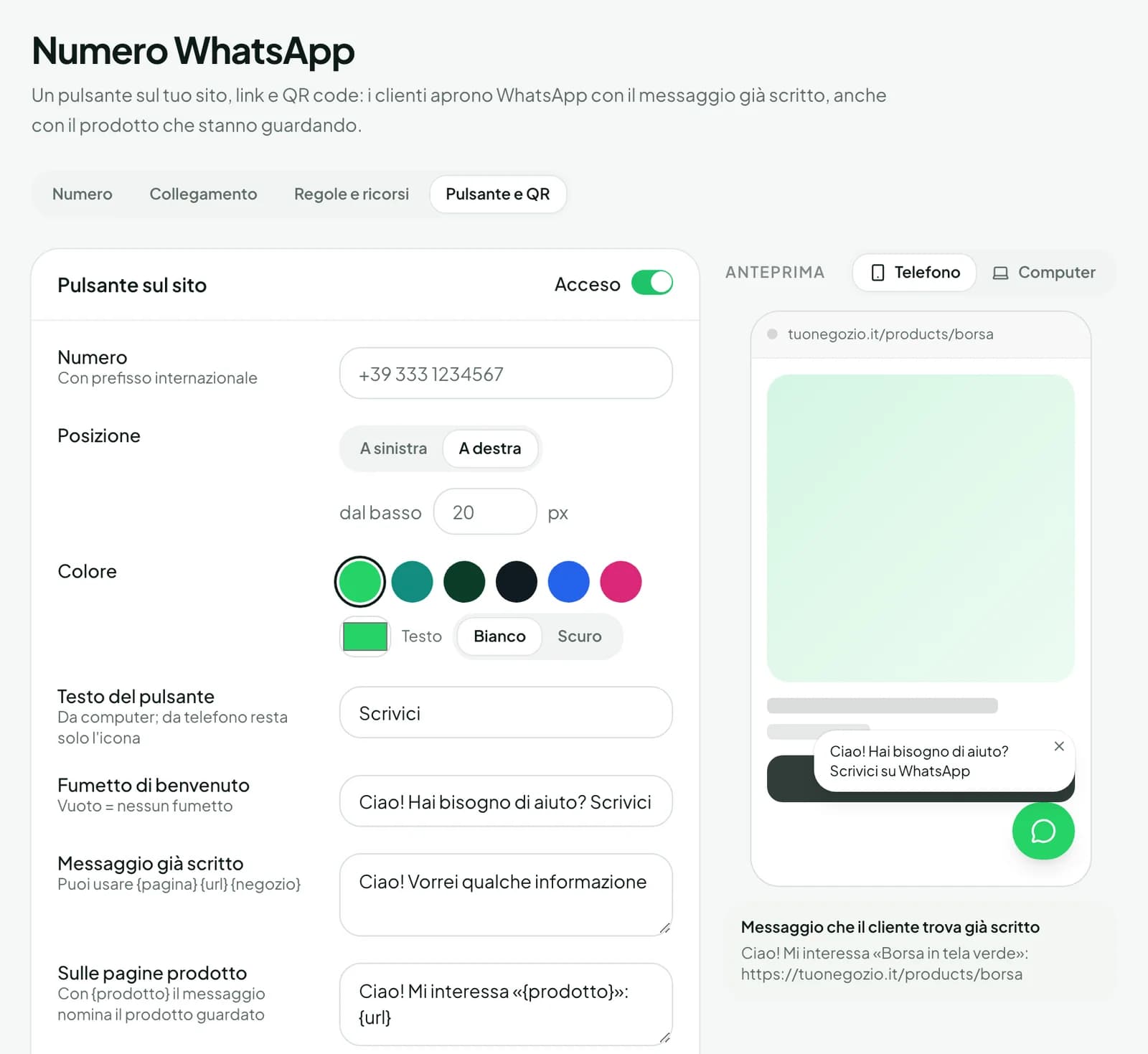
What you get
- A floating button on every page and, if you like, one under “Add to cart”.
- The prefilled message names the product the customer is looking at.
- Links and QR codes for flyers, shop windows, parcels and social media.
- Clicks counted by button, page and link or QR code source.
How it works
- 1
Set up the button
In Settings › WhatsApp number, “Button and QR” tab, choose the position, color, text, welcome bubble and prefilled message, and check it in the mobile and desktop preview.
- 2
Copy the line of code
In “Add it to your site”, click “Copy”: it's a single line, the same for every page.
- 3
Add it to your site
On Shopify: Online Store › Themes › “…” › Edit code, open theme.liquid and add the line right before the closing body tag. On other sites, such as WordPress, Wix or Squarespace, put it in the custom code section.
- 4
Change it whenever you want
The changes you save in Gosendly reach your site on their own within a few minutes, without touching the line again.
The right message, already written
In the prefilled message you can use {pagina}, {url} and {negozio}; on product pages, with {prodotto}, the message names the product being viewed. The customer opens WhatsApp with “Hi, I'd like some information about the Blue hooded sweatshirt” and you know right away what they mean, without asking.
The button recognizes product pages on its own from the page data. You can show it only on mobile or only on desktop, after a few seconds, and hide it from pages such as checkout.
Links and QR codes, beyond your website
In the “Links and QR codes” section, write where you'll use it, for example “flyer” or “parcel”, and a different message if you want one. You get a tracked link and a QR code to download: SVG for print, PNG for social media. Anyone who scans the QR code on the card in the parcel opens WhatsApp with the message ready to send.
For a quick QR code without an account, there's also the free WhatsApp link and QR code tool.
How many clicks, and from where
In “WhatsApp clicks” you see how many people opened WhatsApp from the button, from each page and from each link and QR code source, over the last 7, 30 or 90 days. That way you know whether the flyer in your shop brings in chats, or which product gets the most questions.
Every chat started from the button lands in the shared inbox, where your team, the bot or the AI assistant can reply.
Frequently asked questions
Does it work if my site isn't on Shopify?
Yes. The line of code works on any site that lets you add custom code to every page, for example WordPress, Wix or Squarespace.
Can I turn it on from my Shopify theme without code?
Not yet: today you add one line to your theme's theme.liquid file. If you need a hand, email our support team (in Italian) at assistenza@gosendly.com: we reply by the next business day.
Can I have a different message for each product?
Yes, without writing one per product: in the product page message, use {prodotto} and the text automatically names the product the customer is looking at.
Which plan includes it?
Every plan, including Free. You need your store's WhatsApp number: the one connected to Gosendly or another number with the international dialing code.
Keep reading
- Free toolsWhatsApp link and QR code generatorEnter your store's number and, if you like, the message your customer will find ready to send: you get the wa.me link to copy and the QR code to…Read
- FeaturesShared WhatsApp inbox for your teamWith the Gosendly shared WhatsApp inbox, your whole team replies from the store's same number, each person with their own login, from a computer or…Read
- SolutionsSell on WhatsApp, from question to paymentThe customer asks if their size is in stock, if it can be personalized, how much shipping costs. To sell on WhatsApp with Gosendly, you answer in…Read
- SolutionsWhatsApp customer service, with your whole teamOne number, many people replying, no message lost. WhatsApp customer service with Gosendly puts your whole team in the same inbox, routes requests…Read
More features: WhatsApp
Number, templates and a button for your website.
- WhatsApp templates: create them and get them approvedTo message a customer first, or more than 24 hours after their last message, WhatsApp requires a template approved by Meta. With the Gosendly template editor you write it, see exactly how…Also included in the Free plan
- Connecting your WhatsApp numberTo use Gosendly, your store's WhatsApp number must be connected to Meta's official platform. Today we do the connection together with you, following the same steps as Meta's signup window…Also included in the Free plan
Sign-ups open soon
Leave your email and we'll tell you when we launch: then you create your account and find a sample store full of data to try right away.
- We'll write to you once
- Every feature when we open
- Sample store already full of data