Automations
WhatsApp chatbot with buttons and menus
“Where's my order?”, “What size do you recommend?”, “Do you ship abroad?”. With the Gosendly WhatsApp chatbot, customers pick from buttons and menus with a single tap, the flow takes them to the right answer, and someone from your team steps in when needed.
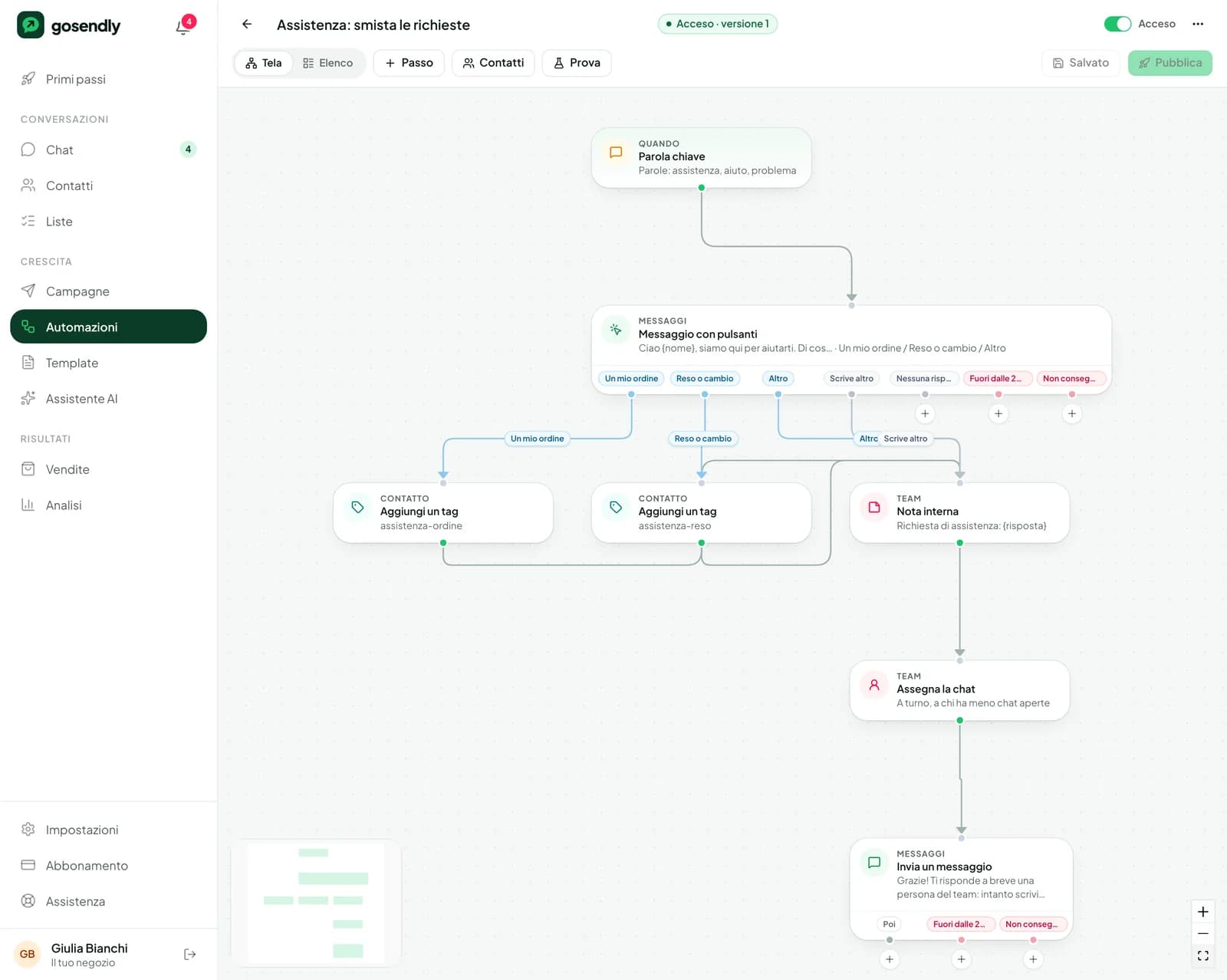
What you get
- Customers tap instead of typing: fewer repeated questions, fewer mistakes.
- Each button leads down a different path of the same flow.
- The answer is saved to the customer: a size, an email, a date.
- The bot stays quiet when someone from your team is typing, and hands over the chat when needed.
How it works
- 1
Choose when it starts
Create an automation with the “Keyword” trigger (for example “order”, “sizes”, “shipping”), “First message” or “Template button”.
- 2
Add buttons or a menu
Use “Button message”, up to 3 choices, or “List message”, a menu with up to 10 items. Each choice has its own output on the canvas.
- 3
Connect the replies
Behind each choice, add the right step: a message, a photo, a request for information with “Wait for reply”, or a handoff to the team with “Assign chat”.
- 4
Test and turn on
Simulate the chatbot or try it on your own number, then press “Publish and turn on”.
Buttons and menus, within WhatsApp's limits
WhatsApp allows up to 3 reply buttons, each with a maximum of 20 characters, and list menus with up to 10 items in total, with a 24-character title and a 72-character description. Gosendly checks these limits as you type.
Buttons and menus can only be sent within 24 hours of the customer's last message: they work as a reply to people who write to you. To reopen the conversation after that you need a template, which can have its own buttons; the customer's choice leads to a branch of the same flow, tied to the message that sent it.
Questions and answers that stick
With “Wait for reply” the flow asks a question and waits, for a maximum time you choose: if the customer replies it goes one way, if not it goes the other. The answer is saved in a customer field; if they send several messages in a row they become a single answer, and automatic messages like “I'm on vacation” don't count.
With the AI assistant, on paid plans, the chatbot also understands poorly written answers (“42 thanks” becomes 42) and picks the path based on meaning.
When the customer goes off script
If the flow is waiting for a button and the customer types something else, you decide what happens: the store's bot replies, a message steers them back to the options, the AI answers the question and returns to that point in the flow, or the chat goes to the team.
WhatsApp's rules allow automated replies, but customers must be able to reach a person: that's why a “Talk to us” button leading to “Assign chat” is always a good idea. The handoff can also send an alert to the team.
The bot steps aside
In every chat you can see whether the bot is active, paused or off, and pause it for 2 or 24 hours. After a message written by someone on your team, the bot stays quiet for the number of hours you choose in Settings › Auto-replies, so it doesn't talk over whoever is replying.
Frequently asked questions
Do I need to know how to code?
No. You build the chatbot with blocks on the canvas, and on your phone there's a list view. To get started you can use a ready-made recipe, such as “Customer service: sort requests”.
Does the chatbot also answer open-ended questions?
A button chatbot follows the paths you've drawn. For open-ended questions there's the AI assistant, which answers from your store's information; in flows you use it with the “Reply with AI” step.
Can I send a menu to someone who hasn't messaged me in days?
No: after 24 hours from the customer's last message, WhatsApp only allows approved templates. You can send a template with quick reply buttons and let the flow continue from their reply.
Which plan includes it?
The button and menu chatbot is available from the Free plan, within the limit of 3 automations; on paid plans automations are unlimited and AI steps are added.
Keep reading
- FeaturesBlock-based WhatsApp automationGosendly's WhatsApp automations are messages that go out on their own at the right moment and stop when they're no longer needed: as soon as the…Read
- FeaturesAI assistant that answers from your sourcesThe Gosendly AI assistant answers customers on WhatsApp using your store's information: shipping, returns, sizes, order status. If it doesn't know…Read
- FeaturesReady-made recipes for online storesYou don't have to start from a blank page. Gosendly's ready-made recipes are complete flows for the typical moments of an online store, with timings…Read
- SolutionsWhatsApp customer service, with your whole teamOne number, many people replying, no message lost. WhatsApp customer service with Gosendly puts your whole team in the same inbox, routes requests…Read
- GuidesChatbots and AI on WhatsApp: what actually worksA chatbot or AI assistant on WhatsApp can answer at night, route questions and save your team hours. It can also annoy customers if it promises…Read
More features: Automations
Block-based flows and ready-made recipes that work on their own.
- Block-based WhatsApp automationGosendly's WhatsApp automations are messages that go out on their own at the right moment and stop when they're no longer needed: as soon as the customer buys, replies or asks you to stop…Also included in the Free plan
- Ready-made recipes for online storesYou don't have to start from a blank page. Gosendly's ready-made recipes are complete flows for the typical moments of an online store, with timings already set and templates already…Also included in the Free plan
Sources
- Meta: interactive reply buttons messages(opens in a new tab)Read on October 28, 2026
- Meta: interactive list messages(opens in a new tab)Read on October 28, 2026
- WhatsApp Business Messaging Policy(opens in a new tab)Read on October 28, 2026
Sign-ups open soon
Leave your email and we'll tell you when we launch: then you create your account and find a sample store full of data to try right away.
- We'll write to you once
- Every feature when we open
- Sample store already full of data