Conversations
Notifications on phone and computer
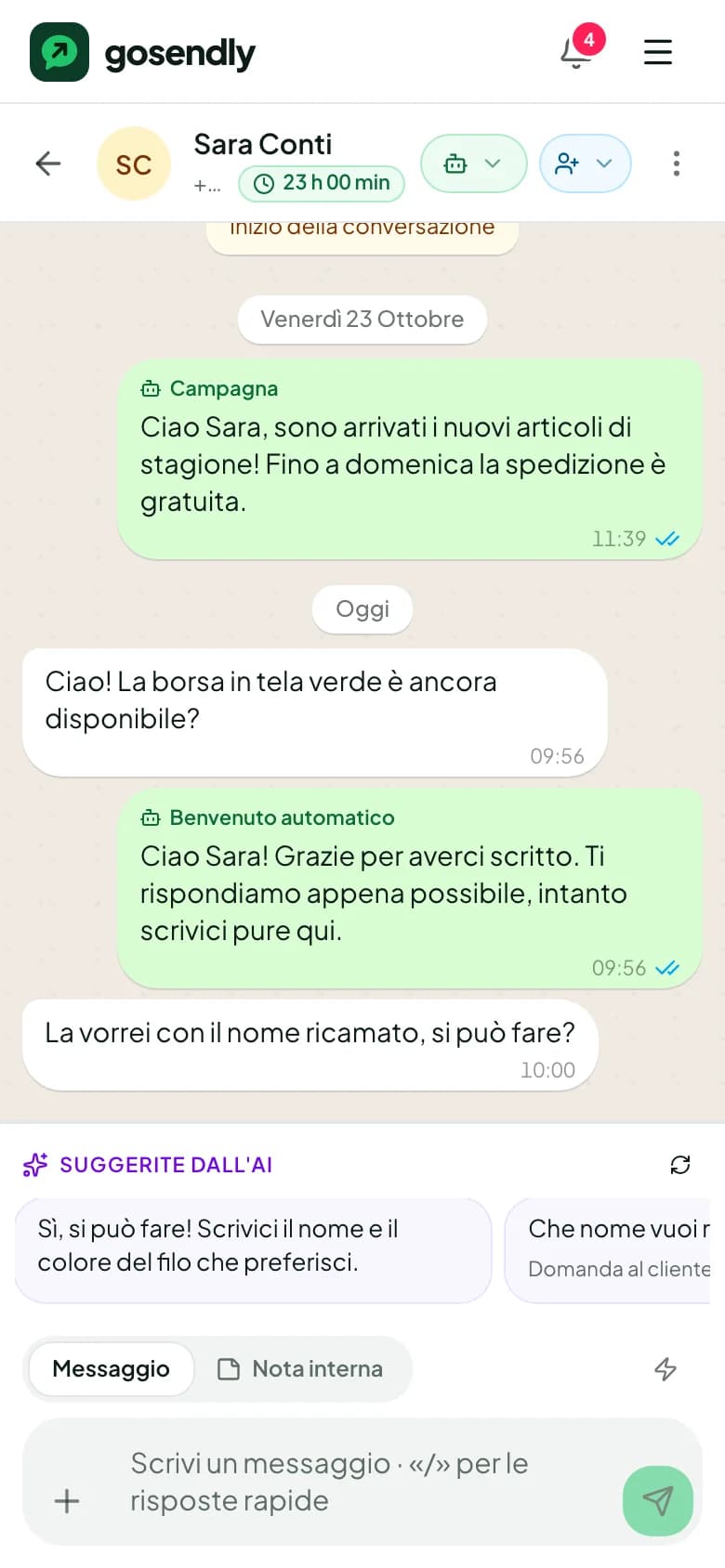
A customer writes while you're in the stockroom packing orders: if you don't notice, they wait for hours. Gosendly sends you a notification on your phone or computer when a customer is waiting for you specifically, even with the app closed, and leaves everything else in the bell.
What you get
- Alerts even with the app closed or the screen locked.
- On Android, on your computer and on iPhone with Gosendly added to the Home Screen.
- It alerts you when a person is needed, not for every bot reply.
- Everyone picks their own alerts, and outside their hours the phone stays quiet.
How it works
- 1
Open notifications
Go to Settings › Notifications, or in Chat open the three-dot menu above the list and choose “Phone notifications”.
- 2
Turn them on for this device
Tap “Turn on notifications” and accept the browser's request. With “Send a test” you check that they arrive. Repeat on every phone or computer you use.
- 3
On iPhone, Home Screen first
In Safari tap Share and then “Add to Home Screen”. Open Gosendly from the new icon, go back to Notifications and tap “Turn on notifications”. It requires iOS 16.4 or later.
- 4
Choose what to receive
In “What we alert you about” and “Which alerts on your phone” you decide alert types and hours. The ones you turn off still stay in the app's bell.
Only when a person is needed
If the bot or the AI assistant has already replied to the customer, we usually don't disturb you; if you want to know anyway, turn on “Even when the bot has already replied”. When the chat is assigned to an agent, the alert goes only to that agent; if it's unassigned, to the team. Anyone already viewing that chat gets nothing: they see the message live.
If the customer sends five messages in a row, you don't get five notifications: the alert for that chat updates, and on the phone at most one notification per minute per chat goes out.
What can alert you
In “Which alerts on your phone” you turn individual types on and off, split into three groups. Chat alerts go to whoever replies to customers; alerts about orders, templates, campaigns and the number go to owners and admins, and payment received goes to whoever sent the request.
- Chat: new messages, customer asking for a person, chat assigned to you, mention in a note, reminder, 24-hour window closing, handoff from the AI assistant.
- Store: orders generated by WhatsApp, payments received in chat, cash-on-delivery orders to check before shipping.
- Account: templates approved or rejected, campaigns completed, WhatsApp number quality rating, people joining the team.
Never miss the 24-hour window
Once 24 hours have passed since the customer's last message, you can only write to them with a Meta-approved template, which is paid. With “24-hour window closing”, under “Store alerts”, Gosendly alerts whoever handles the chat (or the team) when a customer is still waiting and the window is about to close: by default one hour before, or anywhere from 30 minutes to 3 hours before.
Everyone decides their own alerts
Preferences are personal. With “Only chats assigned to me” you get messages from your chats and not from your teammates' or unassigned chats. With “On my phone only during my working hours”, off-shift alerts wait in the bell: the hours are the ones in Hours and holidays.
In the bell, at the top of the menu, you find the number of unread alerts and “Mark all as read”; the same number appears on the app icon, where the phone allows it. In “Your devices” you remove a phone you no longer use.
Frequently asked questions
Do notifications work on iPhone too?
Yes, with iOS 16.4 or later and Gosendly added to the Home Screen from Safari: that's Apple's rule for notifications from sites installed as apps. After that they arrive even on the lock screen, like those from other apps.
Do I have to keep Gosendly open to get alerts?
No. Once turned on for a device, notifications arrive even with the app closed or the screen locked. On iPhone, Gosendly must be opened from the Home Screen icon at least to turn them on.
Do I get a notification for every customer message?
No. The alert for the same chat updates instead of multiplying, on the phone you get at most one notification per minute per chat, and nothing if you're already viewing that conversation.
Can I stop alerts in the evening and on weekends?
Yes: turn on “On my phone only during my working hours”. Outside those hours alerts stay in the bell and you find them when you reopen Gosendly.
Are notifications included in the free plan?
Yes, the bell and phone and computer notifications are on every plan, Free included.
Keep reading
- FeaturesShared WhatsApp inbox for your teamWith the Gosendly shared WhatsApp inbox, your whole team replies from the store's same number, each person with their own login, from a computer or…Read
- FeaturesAutomatic chat assignmentWhen several people reply from the same number, you need to know who is handling which customer. With automatic chat assignment, Gosendly hands each…Read
- FeaturesBusiness hours, holidays and away messageA customer messages you at 10 p.m. on Sunday and has no idea if anyone will read it. With your store hours set in Gosendly, they instantly get the…Read
- FeaturesInternal notes and mentions“Already asked for a size exchange”, “refund done, waiting for the parcel”: that's information for the team, not for the customer. In Gosendly you…Read
- SolutionsWhatsApp customer service, with your whole teamOne number, many people replying, no message lost. WhatsApp customer service with Gosendly puts your whole team in the same inbox, routes requests…Read
More features: Conversations
Reply to customers with your team, from the same chat.
- Shared WhatsApp inbox for your teamWith the Gosendly shared WhatsApp inbox, your whole team replies from the store's same number, each person with their own login, from a computer or a phone. You see who handles each chat…Also included in the Free plan
- Quick replies with variablesShipping, returns, sizes, delivery times: the questions are always the same. With Gosendly quick replies you type “/” in the chat, pick the reply and the text arrives already filled in…Also included in the Free plan
- Automatic chat assignmentWhen several people reply from the same number, you need to know who is handling which customer. With automatic chat assignment, Gosendly hands each conversation to a team member: whoever…Also included in the Free plan
- Internal notes and mentions“Already asked for a size exchange”, “refund done, waiting for the parcel”: that's information for the team, not for the customer. In Gosendly you write it as internal notes inside the…Also included in the Free plan
- Business hours, holidays and away messageA customer messages you at 10 p.m. on Sunday and has no idea if anyone will read it. With your store hours set in Gosendly, they instantly get the away message, and on Monday morning their…Also included in the Free plan
Sources
- WebKit (Apple): Web Push for Web Apps on iOS and iPadOS 16.4(opens in a new tab)Read on October 28, 2026
Sign-ups open soon
Leave your email and we'll tell you when we launch: then you create your account and find a sample store full of data to try right away.
- We'll write to you once
- Every feature when we open
- Sample store already full of data