Conversations
Automatic chat assignment
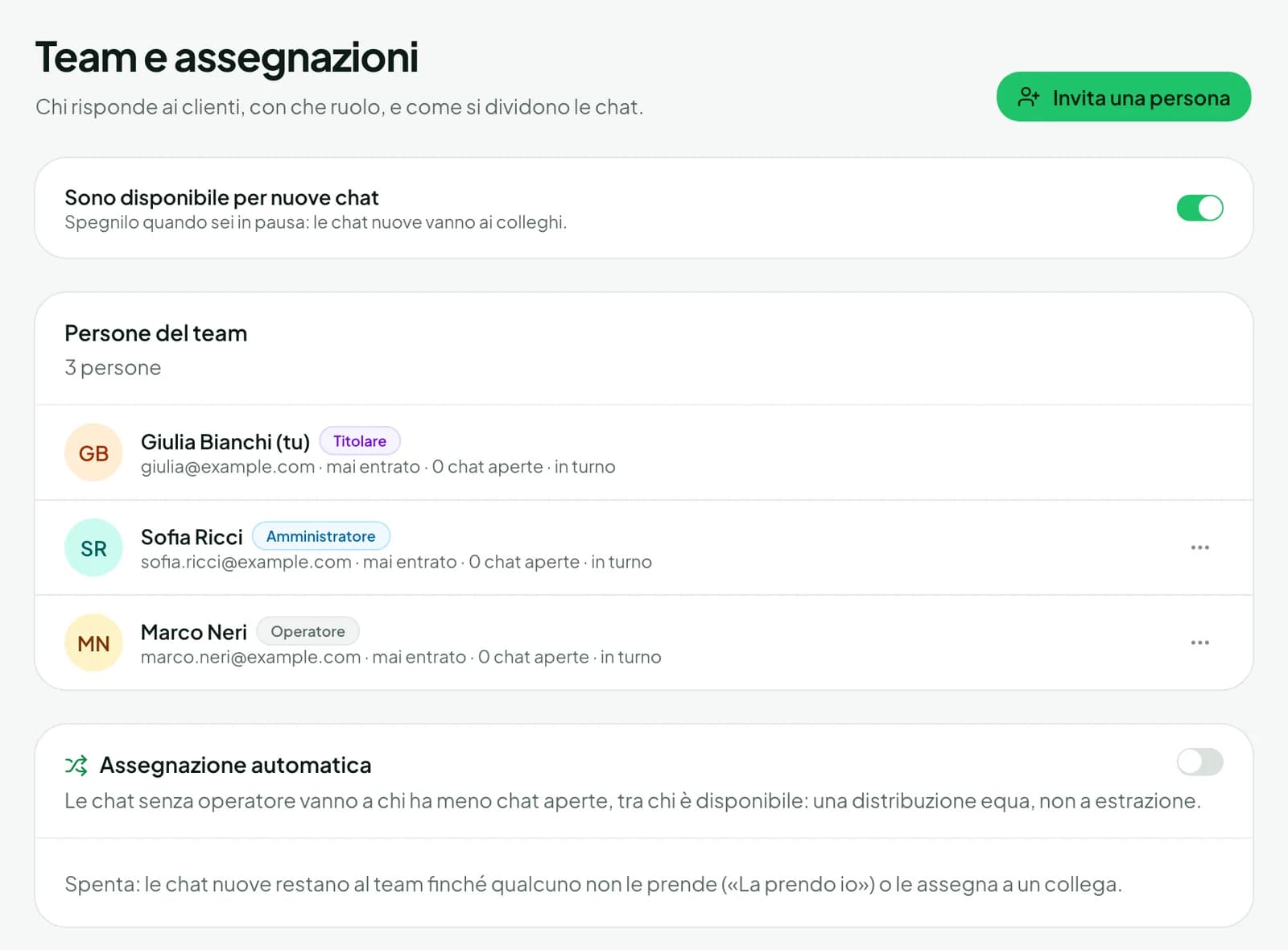
When several people reply from the same number, you need to know who is handling which customer. With automatic chat assignment, Gosendly hands each conversation to a team member: whoever is on shift with the fewest open chats, or whoever picks it up manually.
What you get
- Every customer has someone looking after them, and everyone finds their own chats in “Mine”.
- Fair distribution: to whoever has the fewest open chats, not at random.
- Only to people who are available and on shift, based on each person's hours.
- Whoever gets a chat is alerted in the bell and, if they've turned it on, on their phone.
How it works
- 1
Turn on automatic assignment
In Settings › Team and assignments, turn on “Automatic assignment”. While it's off, new chats stay with the team and someone picks them up manually.
- 2
Choose when to assign
With “When a person is needed”, the chat goes to someone if the bot or the AI hasn't replied, or if the customer asks to talk to a person. With “As soon as the customer writes”, every new chat gets an owner right away, even if the bot replies.
- 3
Decide who receives chats
In “Who receives chats” you tap the people: if you don't pick anyone, all active and available people count. With “Only people on shift”, each person's hours apply.
- 4
Change it manually when needed
At the top of each chat a button shows who is handling it (“Assign” if nobody is). From there choose “I'll take it”, a teammate, “To whoever has the fewest open chats” or “Remove assignment”.
Truly fair: to whoever has the fewest open chats
Gosendly counts each person's open and pending chats and hands the new one to whoever has the fewest. In a tie, to whoever has received the fewest in the last 24 hours, then to whoever has been waiting longest. People who are unavailable are left out and, if you choose, so is anyone off shift: if nobody is around at that moment, the chat stays with the team.
In the assignment menu, next to each teammate you read “on shift · 3 open chats”, “off hours” or “unavailable”: you decide at a glance who to hand it to.
Breaks, shifts and seasonal help
Going on lunch break? Turn off “I'm available for new chats” in Team and assignments, or “Available for new chats” from the chat list menu: new chats go to your teammates and yours stay with you. Anyone whose shifts differ from the store's sets their own in Hours and holidays.
For someone who only helps out at Christmas there's “Timed access”: on the date you choose, access closes by itself and their open chats go back to the team. The same happens with “Deactivate access”.
From flows, AI and contacts too
In automations, the “Assign chat” step sends it “In turn, to whoever has the fewest open chats”, “To a person” or “To nobody (the chat becomes unassigned)”. For example: anyone writing about a wholesale order always goes to the owner.
When the AI assistant (on paid plans) hands the chat to a person, with “To whoever is on shift” it assigns it using the same fair rule. And from the contact book you can select several contacts and choose “Assign chats to an agent”.
Who sees what
In “What agents can see” choose between “All chats”, “Their own and unassigned ones” and “Only chats assigned to them”, handy with outside collaborators. Owners and admins always see everything.
Assignment also decides who gets alerted: when a customer writes in a chat with an agent, the notification goes only to that agent; if the chat is unassigned, to the team.
Frequently asked questions
Does automatic assignment pick at random?
No. It goes to whoever has the fewest open or pending chats; in a tie, to whoever has received the fewest in the last 24 hours. People who are unavailable are left out and, if you choose, so is anyone off shift.
What happens to the chats of someone going on vacation?
With “Available for new chats” turned off, they don't receive new chats but keep their own. If you deactivate their access, or their timed access expires, their open chats go back to the team.
Can two people handle a chat at the same time?
No, a chat has only one agent at a time. To involve a teammate, write an internal note and mention them with @: they get an alert and find the chat.
Does the customer see who is replying?
No, assignment is internal to the team. The customer always writes to and hears from the store's WhatsApp number.
How many people can receive chats?
On the Free plan the team is 2 people, owner included; on paid plans there's no limit. Automatic assignment is included on every plan.
Keep reading
- FeaturesShared WhatsApp inbox for your teamWith the Gosendly shared WhatsApp inbox, your whole team replies from the store's same number, each person with their own login, from a computer or…Read
- FeaturesInternal notes and mentions“Already asked for a size exchange”, “refund done, waiting for the parcel”: that's information for the team, not for the customer. In Gosendly you…Read
- FeaturesBusiness hours, holidays and away messageA customer messages you at 10 p.m. on Sunday and has no idea if anyone will read it. With your store hours set in Gosendly, they instantly get the…Read
- FeaturesBlock-based WhatsApp automationGosendly's WhatsApp automations are messages that go out on their own at the right moment and stop when they're no longer needed: as soon as the…Read
- SolutionsWhatsApp customer service, with your whole teamOne number, many people replying, no message lost. WhatsApp customer service with Gosendly puts your whole team in the same inbox, routes requests…Read
More features: Conversations
Reply to customers with your team, from the same chat.
- Shared WhatsApp inbox for your teamWith the Gosendly shared WhatsApp inbox, your whole team replies from the store's same number, each person with their own login, from a computer or a phone. You see who handles each chat…Also included in the Free plan
- Quick replies with variablesShipping, returns, sizes, delivery times: the questions are always the same. With Gosendly quick replies you type “/” in the chat, pick the reply and the text arrives already filled in…Also included in the Free plan
- Internal notes and mentions“Already asked for a size exchange”, “refund done, waiting for the parcel”: that's information for the team, not for the customer. In Gosendly you write it as internal notes inside the…Also included in the Free plan
- Notifications on phone and computerA customer writes while you're in the stockroom packing orders: if you don't notice, they wait for hours. Gosendly sends you a notification on your phone or computer when a customer is…Also included in the Free plan
- Business hours, holidays and away messageA customer messages you at 10 p.m. on Sunday and has no idea if anyone will read it. With your store hours set in Gosendly, they instantly get the away message, and on Monday morning their…Also included in the Free plan
Sign-ups open soon
Leave your email and we'll tell you when we launch: then you create your account and find a sample store full of data to try right away.
- We'll write to you once
- Every feature when we open
- Sample store already full of data