Conversations
Quick replies with variables
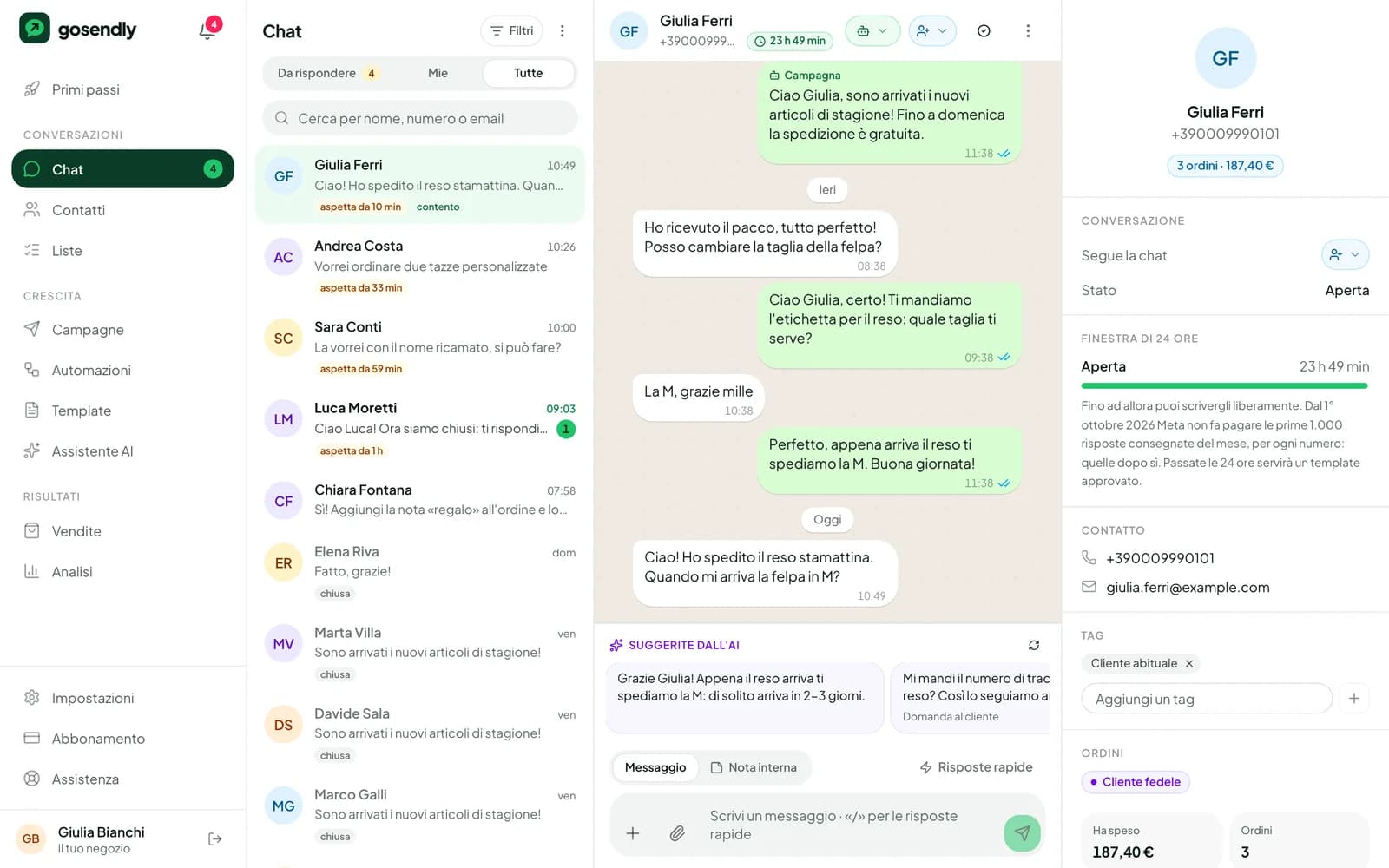
Shipping, returns, sizes, delivery times: the questions are always the same. With Gosendly quick replies you type “/” in the chat, pick the reply and the text arrives already filled in with the customer's name and their order details.
What you get
- Type “/shipping” and the reply is ready to check and send.
- Name, order number and tracking link are filled in with the customer's details.
- Up to 5 attachments per reply: the size guide as a PDF, a photo, a video.
- The same replies for the whole team, sorted by the ones you use most.
How it works
- 1
Open quick replies
In Chat, from the three-dot menu above the list, choose “Quick replies”. You can also reach them with “Manage”, in the list that appears when you type “/”.
- 2
Create the reply
Press + (“New quick reply”) and fill in “Shortcut” (for example shipping) and “Text”; title and category are optional. With the “Variable” button you insert customer details, and below you see a preview with a sample customer. Then press “Create reply”.
- 3
Add attachments
After saving, “Add an attachment” appears: JPG or PNG photos, MP4 videos, audio, and PDF, Word, Excel or PowerPoint documents.
- 4
Use it in chat
In the text box type “/” and the first letters, or press “Quick replies” above the box, and pick the reply with a tap or with the arrow keys and Enter. The text lands in the box already filled in: you check it, tweak it if needed and send it, along with the attachments.
The text fills itself in with the customer's details
The parts in curly braces become the details of the customer in that chat. Save a reply like “Hi {nome}, your order has shipped: track it here”, add the order number and the tracking link with the “Variable” button, and it arrives in the box as “Hi Giulia, your order #1043 has shipped: track it here…”, with the real tracking link. Order details come from the customer's latest order, so you need Shopify connected; name, phone, email and custom fields, such as {campo.taglia}, work for any store.
- Fallback value after the bar: {nome|customer} writes “customer” if the name is missing.
- Without a fallback, the variable disappears along with the space before it: “Hi {nome}!” becomes “Hi!”.
- If a detail is missing, Gosendly tells you before sending: “check the text before sending”.
Attachments that go out with the text
If you sell clothing, you send the size guide ten times a day; if you sell furniture, the assembly sheets. Attach the file to the reply just once: when you pick it, “These will also be sent with /sizes:” appears above the box with the file name. If you don't need it in that chat, remove it with the X.
Team replies, sorted by use
Quick replies belong to the store, not to a single person: anyone joining the shared inbox finds all the right phrases right away. The list shows how many times each reply has been used, and when you type after “/”, the ones starting with the letters you typed come first.
A reply can be edited by whoever created it, the owner or an admin: everyone else can use it but not change it.
Bring the replies you already have
With the “Import multiple replies” icon you add all your replies at once, one per line: the shortcut, a vertical bar and the text (for a line break write \n). Shortcuts already in use are skipped and Gosendly tells you which ones. It's the way to bring into Gosendly the quick replies from the WhatsApp Business app, which Meta doesn't make available.
With the AI assistant, on paid plans, suggested replies also draw on your saved replies and show you which one they used.
Frequently asked questions
Can I use a quick reply more than 24 hours after the customer's last message?
No: a quick reply is free-form text, and WhatsApp only allows that within 24 hours of the customer's last message. After that you need a Meta-approved template, and the chat flags it for you.
What happens if the reply contains {nome} but the customer has no saved name?
If you set a fallback value, such as {nome|customer}, that appears instead. Otherwise the variable disappears along with the space before it, and Gosendly warns you that details are missing before you send the message.
Are quick replies the same for the whole team?
Yes, they belong to the store. Anyone replying in the chat can use them; they can be edited by whoever created them, the owner and admins.
Can I import quick replies from the WhatsApp Business app?
Meta doesn't pass them to Gosendly automatically. You copy them from the app and paste them into the “Import quick replies” window, one per line with the shortcut, a vertical bar and the text.
Are they included in the free plan?
Yes, quick replies with variables and attachments are on every plan, Free included.
Keep reading
- FeaturesShared WhatsApp inbox for your teamWith the Gosendly shared WhatsApp inbox, your whole team replies from the store's same number, each person with their own login, from a computer or…Read
- FeaturesSuggested replies, summaries and translationsNot everyone wants an AI writing to their customers. Gosendly's chat helpers work for whoever is replying: they suggest three replies, summarize the…Read
- FeaturesWhatsApp templates: create them and get them approvedTo message a customer first, or more than 24 hours after their last message, WhatsApp requires a template approved by Meta. With the Gosendly…Read
- SolutionsWhatsApp customer service, with your whole teamOne number, many people replying, no message lost. WhatsApp customer service with Gosendly puts your whole team in the same inbox, routes requests…Read
- IndustriesWhatsApp for clothing storesIn fashion, the doubt is almost always the size. With WhatsApp for your clothing store you answer before the order, handle exchanges in chat and…Read
More features: Conversations
Reply to customers with your team, from the same chat.
- Shared WhatsApp inbox for your teamWith the Gosendly shared WhatsApp inbox, your whole team replies from the store's same number, each person with their own login, from a computer or a phone. You see who handles each chat…Also included in the Free plan
- Automatic chat assignmentWhen several people reply from the same number, you need to know who is handling which customer. With automatic chat assignment, Gosendly hands each conversation to a team member: whoever…Also included in the Free plan
- Internal notes and mentions“Already asked for a size exchange”, “refund done, waiting for the parcel”: that's information for the team, not for the customer. In Gosendly you write it as internal notes inside the…Also included in the Free plan
- Notifications on phone and computerA customer writes while you're in the stockroom packing orders: if you don't notice, they wait for hours. Gosendly sends you a notification on your phone or computer when a customer is…Also included in the Free plan
- Business hours, holidays and away messageA customer messages you at 10 p.m. on Sunday and has no idea if anyone will read it. With your store hours set in Gosendly, they instantly get the away message, and on Monday morning their…Also included in the Free plan
Sign-ups open soon
Leave your email and we'll tell you when we launch: then you create your account and find a sample store full of data to try right away.
- We'll write to you once
- Every feature when we open
- Sample store already full of data